Saturday, October 26, 2019

My First Curiosity Development Board Project

Objective: 
  • Familiar with Microchip Curiosity Development Board
  • Install and setup MPLAB X IDE
  • Familiar with DAC, CLC, TMR, PWM and C programming, and basic MPLAB IDE operation.
  • Confirm multiple independent function can be executed in PIC16F1619.

Project Initial Setup:
  1. Hardware:
    1. One "Curiosity Development Board", from Amazon, $20.
    2. One mini USB cable
    3. One Oscilloscope
  2. Software:
    1. Install MPLAB X IDE from https://microchipdeveloper.com/mplabx:installation
    2. Resource: https://www.youtube.com/watch?v=7MqyU0Lxj08

Start A New MPLAB Program (draft note only):
  1. Start MPLAB
  2. File--> Stand along project
  3. Enter device name, in my case, it is PIC16F1619
  4. Select "None" for debug header
  5. Select "Curiosity" in select tool window
  6. Select "XCB" in select compiler window.  Install one if missing.
  7. Provide project name, such as "My test code"
  8. Save "MyConfig.mc3" in "Save MCC Configuration File" window.
  9. Choose "PDIP20" in package pull down tab in "Pin Management Grid View".
  10. MPLAB is ready for programming

Project Objective:
  1. Setup "Saw Shape" signal generator with C code and DAC peripheral.
  2. General two clocks, they are 250KHz and 500Hz with TMR and PWM peripheral.  Setup up one switch to select signal with CLC peripheral but without using CPU's resource.
  3. About two signals process are run simultaneously and independently.
System Environment Setup:
Required Peripherals List

Setup Oscillator with "INTOSC..." and "1MHz".  This internal clock setting affect saw signal frequency directly.

Pin module setting -1

Pin module setting -2

Saw Shape Signal Generator:

Add a simple DAC code
Make sure check two check boxes.
DAC1OUT>>RA0, see the lock symbol in green box.


For 250K and 500 Hz Signal Switch: 
CLC1 setting, need assign "CLCIN0" and "CLCIN1" in above chart.
S1 >> RC4 >>CLCIN0 choose signal between CLCIN1 << PWM3 or CLCIN2<<PWM4
PWM3OUT>>CLCIN1, please note the right two corners' link symbol at RC3 (not show).

PWM4OUT>>CLCIN2, , please note the right two corners' link symbol at RC2 (not show).
CLC1OUT>>RC5, see lock symbol in green box.
Signal Flowchart, use RC4 to control switch to provide either 500Hz or 250KHz output to RC5.


Set clock range and precise Timer Period.  The Timer Period (ex, 2ms) define the timer frequency.
Set duty cycle and source of timer.
Set timer
Set duty cycle and source of timer, when Timer2 using "FOSC" as its source, PWM4 does not show any parameter in PWM parameter.  But, Timer2 using "FOSC/4" as its source, PWM parameters will be populated.  See PWM3 for comparison.  This issue seems not significant issue since both work either or not the PWM parameter has been populated in this window or not.  

Testing Microchip:
Ground: blue wire, RA0: white wire DAC output, RC5, blue wire timer/PWM signal output.
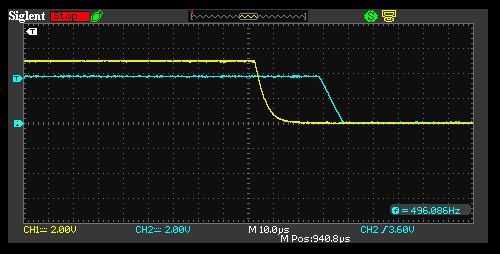
Yellow line: 230Hz saw signal has been generated by DAC and C code.  Its signal is not linear and very noise.  It could be a DAC bug from PIC16F1619.

Blue line: 250K Hz clock when S1 is off/not pressed.
Yellow line from generated by DAC which is quite noise.

S1 switch
Frequency has been dropped to 500Hz clock when S1 is pressed.

Programming Code:
#include "mcc_generated_files/mcc.h"
void main(void)
{
    // initialize the device
    SYSTEM_Initialize();
    uint8_t count=0;
    DAC1_Initialize();
    
    while (1)
    {
        for(count=0; count<=255; count++)
        {
            DAC1_SetOutput(count);
            //__delay_ms(1);
        }
    }
}

Summary:
This 20$ Curiosity Development Board is a very a very different but a powerful  board compare to Arduino.  You can set and execute multiple functions on the same chip and run interdependently.  Many functions can be operated without using CPU resource too. 

My favor peripheral are Timer, PWM and CLC.  They can be set easy without code, and run very fast.  My less favor part is DAC because it is very slow and very noise at the same time.  The worst part is poor signal linearity issue.

I am happy having this board, and will use it on my future project.  However, the first time I try it, I almost give up and return it back to Amazon within the same day.  Here is why:

  1. Cannot find much information on book or internet about this board.
  2. MPLAB X IDE is very complicate.
  3. Many operation concept are new compare to Arduino's.
  4. It is for advance user.  Very steep learning curve.  
  5. Cannot follow some examples since it demos with a different board from Microchip website.  Some peripheral's name, and option are different in their demonstration.
  6. User much familiar with C programming coding.
  7. User must familiar with logical gate.
  8. User must has sufficiency tool to work with this board, such as oscilloscope and etc.
  9. Microchip company do not provide example or detail description on many peripheral such as AT, CCP, CRC, CWG, ZDC, MSSP, FVR and etc.
PIC16F1619 is a power chip, it opens a new application opportunity to me such as HDMI signal handling, and different clock signal source.  But NOT recommend for beginner unless you can find help from experienced user. 

This is my first time using this board.  When writing this blog, I only have about two days trial and error experience on this board.  If you see error, please do not hesitate let me know.  Thanks.  

Resource:

Thursday, October 17, 2019

Garage Door is Still Open Reminder

Project Description.  

To prevent people forget to close their garage door, this project has been build to reminds people if their garage door has been open for more then 10 minutes.

As soon as garage door has been detected as "open", this device will start counting down for 10 minutes.  During counting down period it does not make any sound.  After 10 minutes is up, its buzzer will make "beeps" to reminder owner to close their garage door.

Feature: 
  1. Monitor the garage door is opened or closed.
  1. If the door is open for more then 600 second (10 min), its buzzer sounds reminder alarm.
Component List:
  • 1x Arduino Nano
  • 1x HC-SR04
  • 1x Yellow LED
  • 1x 5V Buzzer 
  • 1x 470 ohm LED resistor, (or any similar resistor)
  • Mini USB power supply
  • Wires
  • Project enclosure box


Schematic:


Result:


Arduino Code:
/* Garage Door Reminder Project
 *
 * Author: Samson Yang
 * Date: 10/19/2019
 *
 * Feature:
 *  1. Monitor the garage door is opened or closed
 *  2. If the door is open more then 600 second (10 min), it sounds "DOOR" mose code as the reminder alarm.
 *
 *  Pin Arrangement:
 *  D4 --> Door status yellow LED
 *  D7 --> US Trigger
 *  D8 --> US Echo
 *  D9 --> Buzzer
 *  
 *  
 *  Regarding <TimeLib.h>, please download zip from https://github.com/PaulStoffregen/Time and then add to Arduino's library
*/
#include <TimeLib.h>
bool buzer = 1;
int Pre_closing_alarm_time=600;   //after 10 minutes sound reminder
int Closed_Door_Threshold=600;  
long int count=0;


// the setup function runs once when you press reset or power the board
  pinMode(8, INPUT);    //Counting pin
  digitalWrite(4, LOW);
  //Test mode when pin 5 is high
  say_hi();
int door_open_time=0;
  //Check how much time the door has been opened
  //Door is opened
  //Send message out
  //Max frequency is 10Hz, or use 100 or higher value
bool check_door(){
  //Triger the signal
  //Measure the distance
  if (count_in<Closed_Door_Threshold)
void say_door(){
void say_door_is_open(){
void say_hi(){
void L(){
void S(){
void _(){


void setup() {
  Serial.begin(9600);
  pinMode(4, OUTPUT);   //Door status indicator
  pinMode(7, OUTPUT);   //Triger pin
  pinMode(9, OUTPUT);   //Alarm pin

  pinMode(5, INPUT);    //Test pin, 1: testing, 0:Normal

  digitalWrite(7, LOW);
  digitalWrite(9, LOW);

  if(digitalRead(5)){
    Pre_closing_alarm_time=3;
  }

}

void loop() {
  int time_gap=0;
  bool door_status = check_door();

  time_gap=now()-door_open_time;

  if (door_status) {
    digitalWrite(4, HIGH); //Turn on door status indicator LED
    if (time_gap>Pre_closing_alarm_time){
      //Remind door is open
      say_door();  //Option 1
      //say_door_is_open();//Option 2 
      //digitalWrite(9, buzer);buzer=!buzer;//Option 3
      }
    }

  else {
    //Door is closed
    digitalWrite(4, LOW); //Turn off door status indicator LED
    door_open_time=now();
    digitalWrite(9, LOW); //Turn off buzer
  }

  //Serial.print("");Serial.print("  ");
  //Serial.print(now());Serial.print("  ");Serial.println(door_open_time);

  delay(100);                    
}

  //if Closed return 0
  //if Opened return 1
  long int count_in=0;

  digitalWrite(7, HIGH);
  digitalWrite(7, LOW);

  //Wait ultra sound echo
  while (!digitalRead(8));

  while (digitalRead(8)){count_in++;}

    {return 1;}
  else
    {return 0;}
}

  //Say mose code D (it means done)
  L();S();S();_(); //D
  L();_();  //O
  L();_();  //O
  S();L();S();//R
  _();_();
}

  //Say mose code D (it means done)
  L();S();S();_();    //D
  L();_();            //O
  L();_();            //O
  S();L();S();_();    //R
  _();_();
  
  S();S();_();        //I
  S();S();S();_();    //S
  _();_();
  
  L();_();            //O
  S();L();L();S();_();//P
  S();_();            //E
  L();S();_();        //N
  _();_();
}

  S();S();S();S();_();S();S();
}

  digitalWrite(9, HIGH);
  delay(300);
  digitalWrite(9, LOW);
  delay(50);
}

  digitalWrite(9, HIGH);
  delay(100);
  digitalWrite(9, LOW);
  delay(50);
}

  digitalWrite(9, LOW);
  delay(300);
}

Sunday, March 26, 2017

Study the capability of the RF transmitter ( FS1000A/XY-FST) and the receiver (XY-MK-5V).


Objective: 


Top is ( FS1000A/XY-FST) and the bottom RF receiver (XY-MK-5V).


Use Arduino to produce square wave, and as power supply to the Tx.  A small capaceter add to data pin to reduce noise.

There are three pin.  From let to right are: Data pin, Vcc pin, and GND pin

Rx circuit

Pin from the left to the right are: Vcc, Data1, Data2, and GND.  Note: Data 1 = Data 2

25us delay

The lowest stable frequency is 2Hz.  The receiver's voltage is ~4V.

When frequency is too low, receiver cannot work normally

The highest stable working frequency is 17KHz

1KHz 5% duty cycle work stably

1KHz 95% Duty cycle is not stable.  But, 90% is stable.

The operational frequency range:

  • 2Hz to 17KHz with digital signal only

Power Consumption Range:

  • Rx::30mW, =5Vx 6mA
  • Tx: 35mW=5Vx7mA

Transmission range:

  • 50ft distance in house and with 4 layer of dry wall has been tested
  • Max distance is to be tested...  


Summary:

  • This is a simple and effective device digital RF Tx/Rx work.  It can work with or without Arduino.  If use it working with Arduino, you may not need library at all.  
  • Try to avoid sending and low frequency signal because it is unstable at low frequency.  During idle time, try to send a based frequency as well.  It does not work well with DC signal (H or L) signal.

Wednesday, March 22, 2017

Arduino Automatic Garage Door Closer

Project Objective:

  • A device to monitor garage door's status.  If the door remains open for too long (for example, people forget to close it).  It will close the door by itself.  Some false positive and negative should be consider to software design to reduce the potential risk by using this device.


Feature: 

  1. Monitor the garage door is opened or closed
  2. If the door is open more then 540 second (9 min), it sounds slow reminder alarm.
  3. If the door remain in opened in 600 second (10 min), it will sound rapid door closing alarm 
  4. After the door switch is triggered, 
    1.  it will check the status of the door in 23 second.  
    2. 23 second is the door close and re-open cycle time if something/someone prevent the door from closing.
  5. If the door is still closed, it will back to normal monitor cycle. 
  6. If the door is still opened, it will attempt to close it again, and then stay in the infinity loop with error reminder (blanking LED and chipping) 
  7. Risk assessment, What if:
    1. FP: it will attempt to close the door twice.  It will end up just open and close the door.  
    2. FN: it will do nothing.
    3. The overall risk is low for using this device.
  8. It communicates to user with simple Morse code, such as "Hi" after initialized, or "D" after closing the garage door. 


Component List:

  • 1x Arduino Nano
  • 1x HC-SR04
  • 1x PC817 (or equivalent)
  • 1x A-1557 (or equivalent) 
  • 1x Red LED
  • 1x Green LED
  • 1x 5V Buzzer 
  • 1x 10K ohm resistor 
  • 1x 170 ohm LED resistor, (or any similar resistor)
  • 1x 440 ohm LED resistor, (or any similar resistor)
  • 1x 110 ohm PC817 resistor, (or any similar resistor)
  • 5V power supply
  • 1x power switch (for power supply)
  • 1x power switch or jumper (for mode selection)
  • 2x quick connector
  • Wires
  • Project enclosure box


Schematic:

It is a simple schematic (please excuse my chicken scratch...)

Breadboarding.  It is for example only, a bit difference from schematic. When you build it, please only reference to schematic

Assembly and integration.  Add a power switch.
Quick Connection for power and door switch
Installed on top of garage door.
It does NOT detecting door id open.


It detects the garage door is open (the red LED is ON)


Demo 1 (Normal operation.  User just forget to close the garage door.)


Demo 2 (None standard operation.  For example, someone or some thing prevent the door from closing)


Arduino Code:

/* Automatic Garage Door Closer Project
 *
 * Author: Samson Yang
 * Date: 3/20/2017
 *
 * Feature:
 *  1. Monitor the garage door is opened or closed
 *  2. If the door is open more then 540 second (9min), it sounds slow reminder alarm.
 *  3. If the door remain in opened in 600 second (10 min), it will sound rapid door closing alarm
 *  4. After the door switch is trigered,
 *    a. it will check the status of the door in 23 second.
 *    b. 23 second is the door close and re-open cycle time if something/someone prevent the door from closing.
 *  5. If the door is still closed, it will back to normal monitor cycle.
 *  6. If the door is still opened, it will attemp to close it again, and then stay in the inifinity loop with error reminder (blanking LED and chipping)
 *  7. Risk assesment, What if:
 *    a. FP: it will attemp to close the door twice.  It will end up just open and close the door.
 *    b. FN: it will do nothing.
 *    c. The overall risk is low for using this device.
 *  
 *  Note:
 *  * FP(false positive, dooe is closed, but sensor say it is opened).
 *  * FN(false negative, door is opened, but sensor say it is closed).
 *
 *  Pin Arrangement:
 *  D2 --> Garage door switch
 *  D4 --> Door status red LED
 *  D5 --> Test mode selection (with pull up)
 *  D7 --> US Trigger
 *  D8 --> US Echo
 *  D9 --> Buzzer
 *  
 *  
*/
#include <TimeLib.h>
bool buzer = 1;
int Pre_closing_alarm_time=540;   //after 9 minutes sound reminder
int Closing_door_time=600;        //after 10 minutes close door
int Closed_Door_Threshold=600;
int Time_check_door_is_closed=23000;  //Wait 23 sec, if door cannot be closed, it can be detected after 23 seconds.
long int count=0;

// the setup function runs once when you press reset or power the board
void setup() {
  Serial.begin(9600);
  pinMode(2, OUTPUT);   //Door Control switch
  pinMode(4, OUTPUT);   //Door status indicator
  pinMode(7, OUTPUT);   //Triger pin
  pinMode(9, OUTPUT);  //Alarm pin

  pinMode(8, INPUT);    //Counting pin
  pinMode(5, INPUT);    //Test pin, 1: testing, 0:Normal

  digitalWrite(2, LOW);
  digitalWrite(4, LOW);
  digitalWrite(7, LOW);
  digitalWrite(9, LOW);


  //Test mode when pin 5 is high
  if(digitalRead(5)){
    Pre_closing_alarm_time=3;
    Closing_door_time=7;
    Time_check_door_is_closed=10000;
  }
  say_hi();
}

int door_open_time=0;
void loop() {
  int time_gap=0;
  //count=0;

  bool door_status = check_door();

  //Check how much time the door has been opened
  time_gap=now()-door_open_time;

  //Door is opened
  if (door_status) {
    digitalWrite(4, HIGH); //Turn on door status indicator LED
    if (time_gap>Pre_closing_alarm_time){
      digitalWrite(9, buzer);
      buzer=!buzer;
      }
    }
 
  else {
    //Door is closed
    digitalWrite(4, LOW); //Turn off door status indicator LED
    door_open_time=now();
    digitalWrite(9, LOW); //Turn off buzer
  }

  //Check is it time to close the door
  if (time_gap>Closing_door_time){
    close_door();
    door_open_time=now();
  }

  //Send message out
  Serial.print("");Serial.print("  ");
  Serial.print(now());Serial.print("  ");Serial.println(door_open_time);

  //Max frequency is 10Hz, or use 100 or higher value
  delay(500);                    
}

void close_door(){
  int i;
  buzer = 1;
  for (i = 1;i<50;i++){
    digitalWrite(9, buzer);
    buzer=!buzer;
    delay(50);
  }
  digitalWrite(9, LOW);//Turn off buzer

  //Close garage door
  digitalWrite(2, HIGH);
  delay(1000);
  digitalWrite(2, LOW);

  delay(Time_check_door_is_closed);
  if (!check_door()) say_done();
  else {
    //Something wrong, and show slow blanking door status LED.
    //Try close and the door 2nd times  
    //It should mitigate FP (false positive).  Its means door is closed, but sensor think it is opened issue.
    //If there is FP, the second dooe closing activity, will close the door when the first FP open the door.
    buzer = 1;
    for (i = 1;i<100;i++){
      digitalWrite(9, buzer);
      buzer=!buzer;
      delay(100);
    }
    digitalWrite(9, LOW);//Turn off buzer
 
    //Close garage door
    digitalWrite(2, HIGH);
    delay(1000);
    digitalWrite(2, LOW);

    //Infinity loop and show blanking door status LED.
    while (1){
      digitalWrite(4, HIGH);
      delay(200);S();
      digitalWrite(4, LOW);
      delay(3000);
   
    }  
  }
}

bool check_door(){
  //if Closed return 0
  //if Opened return 1
  long int count_in=0;

  //Triger the signal
  digitalWrite(7, HIGH);
  digitalWrite(7, LOW);
 
  //Wait ultra sound echo
  while (!digitalRead(8));

  //Measure the distance
  while (digitalRead(8)){count_in++;}

  if (count_in<Closed_Door_Threshold)
    {return 1;}
  else
    {return 0;}
}

void say_done(){
  //Say mose code D (it means done)
  L();S();S();
}

void say_hi(){
  S();S();S();S();_();S();S();
}

void L(){
  digitalWrite(9, HIGH);
  delay(300);
  digitalWrite(9, LOW);
  delay(50);
}

void S(){
  digitalWrite(9, HIGH);
  delay(100);
  digitalWrite(9, LOW);
  delay(50);
}

void _(){
  digitalWrite(9, LOW);
  delay(300);
}

Saturday, March 11, 2017

Arduino TVOut Project

Objective:

    Experience with TVOut library with Arduino.


Software:

  • Download library from https://github.com/Avamander/arduino-tvout/
  • Note: For some reason, I cannot use the library as is.  During compiling, it pop up below error message.  I stuck in this step for weeks.


  • After I copy all files except README.md from under TVoutfronts folder, and paste them to its upper level folder TVOUT.  I can compile this Arduino code now.  :) If anyone know why this is happening, please let me know.  Thanks.


Copy file from above folder 


Paste file to above folder location


Reference website:


Hardware setup:

Arduino Uno Pin 9: Sync
Arduino Uno Pin 7: Video


Simple Hardware Setup


Arduino Code -1:

#include <TVout.h>
#include <fontALL.h>

TVout TV;
int sensorPin = A0;
int sensorValue = 0;

void setup()  {
  TV.begin(NTSC);  
  TV.select_font(font6x8);
}

void loop() {
  int x, y;

  TV.draw_line(0,0,0,95,1);
  TV.draw_line(0,0,127,0,1);
  TV.draw_line(0,95,127,95,1);
  TV.draw_line(127,0,127,95,1);

  for(y=0;y<TV.vres();y++){
    for(x=0;x<TV.hres();x++){
      TV.set_cursor(40,43);TV.print("(");TV.print(x);TV.print(", ");TV.print(y);TV.print(")  ");
      TV.set_pixel(x,y,2);
    }
  }
  TV.clear_screen(); 
}


Simple Demo

Arduino Code -2:


#include <TVout.h>
#include <fontALL.h>
#include "schematic.h"
#include "TVOlogo.h"

TVout TV;

int zOff = 150;
int xOff = 0;
int yOff = 0;
int cSize = 50;
int view_plane = 64;
float angle = PI/60;

float cube3d[8][3] = {
  {xOff - cSize,yOff + cSize,zOff - cSize},
  {xOff + cSize,yOff + cSize,zOff - cSize},
  {xOff - cSize,yOff - cSize,zOff - cSize},
  {xOff + cSize,yOff - cSize,zOff - cSize},
  {xOff - cSize,yOff + cSize,zOff + cSize},
  {xOff + cSize,yOff + cSize,zOff + cSize},
  {xOff - cSize,yOff - cSize,zOff + cSize},
  {xOff + cSize,yOff - cSize,zOff + cSize}
};
unsigned char cube2d[8][2];


void setup() {
  TV.begin(NTSC,120,96);
  TV.select_font(font6x8);
  intro();
  TV.println("I am the TVout\nlibrary running on a freeduino\n");
  TV.delay(2500);
  TV.println("I generate a PAL\nor NTSC composite  video using\ninterrupts\n");
  TV.delay(2500);
  TV.println("My schematic:");
  TV.delay(1500);
  TV.bitmap(0,0,schematic);
  TV.delay(10000);
  TV.clear_screen();
  TV.println("Lets see what\nwhat I can do");
  TV.delay(2000);
  
  //fonts
  TV.clear_screen();
  TV.println(0,0,"Multiple fonts:");
  TV.select_font(font4x6);
  TV.println("4x6 font FONT");
  TV.select_font(font6x8);
  TV.println("6x8 font FONT");
  TV.select_font(font8x8);
  TV.println("8x8 font FONT");
  TV.select_font(font6x8);
  TV.delay(2000);
  
  TV.clear_screen();
  TV.print(9,44,"Draw Basic Shapes");
  TV.delay(2000);
  
  //circles
  TV.clear_screen();
  TV.draw_circle(TV.hres()/2,TV.vres()/2,TV.vres()/3,WHITE);
  TV.delay(500);
  TV.draw_circle(TV.hres()/2,TV.vres()/2,TV.vres()/2,WHITE,INVERT);
  TV.delay(2000);
  
  //rectangles and lines
  TV.clear_screen();
  TV.draw_rect(20,20,80,56,WHITE);
  TV.delay(500);
  TV.draw_rect(10,10,100,76,WHITE,INVERT);
  TV.delay(500);
  TV.draw_line(60,20,60,76,INVERT);
  TV.draw_line(20,48,100,48,INVERT);
  TV.delay(500);
  TV.draw_line(10,10,110,86,INVERT);
  TV.draw_line(10,86,110,10,INVERT);
  TV.delay(2000);
  
  //random cube forever.
  TV.clear_screen();
  TV.print(16,40,"Random Cube");
  TV.print(28,48,"Rotation");
  TV.delay(2000);
  
  randomSeed(analogRead(0));
}

void loop() {
  int rsteps = random(10,60);
  switch(random(6)) {
    case 0:
      for (int i = 0; i < rsteps; i++) {
        zrotate(angle);
        printcube();
      }
      break;
    case 1:
      for (int i = 0; i < rsteps; i++) {
        zrotate(2*PI - angle);
        printcube();
      }
      break;
    case 2:
      for (int i = 0; i < rsteps; i++) {
        xrotate(angle);
        printcube();
      }
      break;
    case 3:
      for (int i = 0; i < rsteps; i++) {
        xrotate(2*PI - angle);
        printcube();
      }
      break;
    case 4:
      for (int i = 0; i < rsteps; i++) {
        yrotate(angle);
        printcube();
      }
      break;
    case 5:
      for (int i = 0; i < rsteps; i++) {
        yrotate(2*PI - angle);
        printcube();
      }
      break;
  }
}

void intro() {
unsigned char w,l,wb;
  int index;
  w = pgm_read_byte(TVOlogo);
  l = pgm_read_byte(TVOlogo+1);
  if (w&7)
    wb = w/8 + 1;
  else
    wb = w/8;
  index = wb*(l-1) + 2;
  for ( unsigned char i = 1; i < l; i++ ) {
    TV.bitmap((TV.hres() - w)/2,0,TVOlogo,index,w,i);
    index-= wb;
    TV.delay(50);
  }
  for (unsigned char i = 0; i < (TV.vres() - l)/2; i++) {
    TV.bitmap((TV.hres() - w)/2,i,TVOlogo);
    TV.delay(50);
  }
  TV.delay(3000);
  TV.clear_screen();
}

void printcube() {
  //calculate 2d points
  for(byte i = 0; i < 8; i++) {
    cube2d[i][0] = (unsigned char)((cube3d[i][0] * view_plane / cube3d[i][2]) + (TV.hres()/2));
    cube2d[i][1] = (unsigned char)((cube3d[i][1] * view_plane / cube3d[i][2]) + (TV.vres()/2));
  }
  TV.delay_frame(1);
  TV.clear_screen();
  draw_cube();
}

void zrotate(float q) {
  float tx,ty,temp;
  for(byte i = 0; i < 8; i++) {
    tx = cube3d[i][0] - xOff;
    ty = cube3d[i][1] - yOff;
    temp = tx * cos(q) - ty * sin(q);
    ty = tx * sin(q) + ty * cos(q);
    tx = temp;
    cube3d[i][0] = tx + xOff;
    cube3d[i][1] = ty + yOff;
  }
}

void yrotate(float q) {
  float tx,tz,temp;
  for(byte i = 0; i < 8; i++) {
    tx = cube3d[i][0] - xOff;
    tz = cube3d[i][2] - zOff;
    temp = tz * cos(q) - tx * sin(q);
    tx = tz * sin(q) + tx * cos(q);
    tz = temp;
    cube3d[i][0] = tx + xOff;
    cube3d[i][2] = tz + zOff;
  }
}

void xrotate(float q) {
  float ty,tz,temp;
  for(byte i = 0; i < 8; i++) {
    ty = cube3d[i][1] - yOff;
    tz = cube3d[i][2] - zOff;
    temp = ty * cos(q) - tz * sin(q);
    tz = ty * sin(q) + tz * cos(q);
    ty = temp;
    cube3d[i][1] = ty + yOff;
    cube3d[i][2] = tz + zOff;
  }
}

void draw_cube() {
  TV.draw_line(cube2d[0][0],cube2d[0][1],cube2d[1][0],cube2d[1][1],WHITE);
  TV.draw_line(cube2d[0][0],cube2d[0][1],cube2d[2][0],cube2d[2][1],WHITE);
  TV.draw_line(cube2d[0][0],cube2d[0][1],cube2d[4][0],cube2d[4][1],WHITE);
  TV.draw_line(cube2d[1][0],cube2d[1][1],cube2d[5][0],cube2d[5][1],WHITE);
  TV.draw_line(cube2d[1][0],cube2d[1][1],cube2d[3][0],cube2d[3][1],WHITE);
  TV.draw_line(cube2d[2][0],cube2d[2][1],cube2d[6][0],cube2d[6][1],WHITE);
  TV.draw_line(cube2d[2][0],cube2d[2][1],cube2d[3][0],cube2d[3][1],WHITE);
  TV.draw_line(cube2d[4][0],cube2d[4][1],cube2d[6][0],cube2d[6][1],WHITE);
  TV.draw_line(cube2d[4][0],cube2d[4][1],cube2d[5][0],cube2d[5][1],WHITE);
  TV.draw_line(cube2d[7][0],cube2d[7][1],cube2d[6][0],cube2d[6][1],WHITE);
  TV.draw_line(cube2d[7][0],cube2d[7][1],cube2d[3][0],cube2d[3][1],WHITE);
  TV.draw_line(cube2d[7][0],cube2d[7][1],cube2d[5][0],cube2d[5][1],WHITE);
}